Showing posts with label Adobe. Show all posts

Friday, 27 April 2012

Adobe Lightroom 4.1 RC2

Adobe Lightroom 4.1 RC2

Adobe has released a new release candidate for Lightroom 4.1. It has added support for the Canon 60Da, the 5D Mark III was added in RC1.

There are various other bug fixes, most notably bugs from RC1.

Lightroom 4 did not properly open external applications when using the “Edit In” functionality.

Point Curve adjustments made in Lightroom 3 have been restored.

Addressed performance issues in Lightroom 4, particularly when loading GPS track logs, using a secondary monitor, and the controls within the Develop module.

Ability to update DNG previews and metadata for more than 100 photos has been restored.

This update allows for improved viewing of subfolders and stacks in folders with a large number of photos.

It was possible that a layout of a saved book could be lost after quitting Lightroom.

Adobe labs link


Friday, 30 March 2012

Adobe Lightroom 4.1 Release Candidate caters for 5d mark iii and with extra features


Care of http://blogs.adobe.com/lightroomjournal/2012/03/lightroom-4-1-now-available-on-adobe-labs.html

Lightroom 4.1 (http://labs.adobe.com/technologies/lightroom4-1/) is now available as Release Candidates on Adobe Labs.

The ‘release candidate’ label indicates that this update is well tested
but would benefit from additional community testing before it is
distributed automatically to all of our customers.

The final release of Lightroom 4.1 may have additional corrections or camera support.

Bugs Corrected in the Lightroom 4.1 Release Candidate
The following bugs that were part the Lightroom 4 releases have been corrected.
The team appreciates the very detailed feedback the community has provided
on Lightroom 4 and we’re excited to correct a number of issues experienced
by our customers. These issues have been FIXED:

  • Point Curve adjustments made in Lightroom 3 and before have been restored.
  • Lightroom 4 did not properly open external applications when using the "Edit In" functionality.
  • Addressed performance issues in Lightroom 4, particularly when loading GPS track logs, using a secondary monitor, and the controls within the Develop module.
  • Ability to update DNG previews and metadata for more than 100 photos has been restored.
  • This update allows for improved viewing of subfolders and stacks in folders with a large number of photos.
  • It was possible that a layout of a saved book could be lost after quitting Lightroom 4.

    Please provide feedback on your experience with the Lightroom 4.1 Release Candidate in our (ADOBE) Feedback Portal.


    New Camera Support in Lightroom 4.1 Release Candidate
    Canon EOS 5D Mk III
  • Tuesday, 27 March 2012

    Lightroom 4 training tutorials via CreativeLive

    Lightroom 4 Fundamentals with Laura Shoe | creativeLIVE

    Woah, stop what you are doing and enrol onto the FREE webcast for Adobe Lightroom training tutorials.

    A must watch, essential viewing !

    Tuesday, 6 March 2012

    Lightroom 4, now available !!!


    Adobe download link

    Adobe Photoshop Lightroom 4 Create amazing images that inspire, inform, and delight. From first look to final image, Adobe® Photoshop® Lightroom® 4 software provides powerfully simple one-click tools and cutting-edge advanced controls for every step. Easily organize, perfect, and share all your photographs.

    It’s significantly cheaper than prior versions: the full program costs just $149, while the upgrade costs $79.

    Saturday, 4 February 2012

    Lightroom 4 BETA in action


    I've just stumbled across a great Youtube video showing some of the great new toys that are part of the new Lightroom 4 BETA release !


    drool, drool, drool.

    Lightroom 4 BETA - Catalog Upgrade Message

    Lightroom 4 BETA Catalog Upgrade message

    I've just done some background reading, and the LR4 catalog upgrade message is only a concern with the BETA version.

    Important notes from Adobe are (Primary Known Issues):
  • Lightroom 4 beta is not complete but please provide feedback on the available enhancements.
  • Lightroom 4 beta will not upgrade Lightroom 1.x, Lightroom 2.x or Lightroom 3.x catalogs.
    The beta is intended to be used for testing and feedback purposes. Lightroom 1.x, 2.x, 3.x and 4 beta libraries will be able to be migrated to the finished version of Lightroom 4.
  • While data loss is not expected, this is an early ‘beta’ quality build and you should always work on duplicates of files that are securely backed up.
  • Lightroom 4 beta will not overwrite or interfere with a machine that currently has Lightroom 1, Lightroom 2 or Lightroom 3 installed.
  • Develop settings applied in Lightroom 4 beta are not guaranteed to transfer correctly to the final version of Lightroom 4.
  • The Lightroom 4 beta will expire after Lightroom 4.0 is available

    In the link from Adobe : http://blogs.adobe.com/lightroomjournal/2012/01/lr4betanowavailable.html

    On that page, there's a rather extensive list of improvements, ranging from better brushes, robust video support, photobook creation to name just a few.

    I love it already just for the brush enhancements !
  • Tuesday, 24 January 2012

    Adobe Lightroom 4 - features, and video


    I know it's "old hat" to some of you out there, but I'm finally getting round to reviewing and using Adobe Lightroom 4.
    It's currently in the beta testing phase, but I've been hearing alot about it from the likes of Scott Bourne - Photofocus.com, and Scott Kelby - Kelby Training.

    I'm most looking forward to the new features:-
  • Highlight and shadow recovery brings out all the detail that your camera captures in dark shadows and bright highlights.
  • Photo book creation with easy-to-use elegant templates.
  • Location-based organization lets you find and group images by location, assign locations to images, and display data from GPS-enabled cameras.
  • White balance brush to refine and adjust white balance in specific areas of your images.
  • Additional local editing controls let you adjust noise reduction and remove moirĂ© in targeted areas of your images.
  • Extended video support for organizing, viewing, and making adjustments and edits to video clips.
  • Easy video publishing lets you edit and share video clips on Facebook and Flickr®.
  • Soft proofing to preview how an image will look when printed with color-managed printers.
  • Email directly from Lightroom using the email account of your choice.

    Scott Kelby has uploaded a youtube video of his recent trip to India, and the KelbyMediaGroup video shows you some of the new features of Lightroom 4, and a brief glimpse into Scott's thoughts during his workflow - a must watch !

    Scott's Visit to India - The Grid 18th January 2012

  • Tuesday, 13 December 2011

    Adobe Lightroom 3.6 details

    Lightroom_3_LS11_win_3_6.exe


    Lightroom 3.6 now available for download.

    3.6
  • Additional camera support for several new camera models including the Canon Powershot S100, Fuji FinePix X10, and Nikon 1 J1.

  • Corrections for issues introduced in previous versions of Lightroom 3.

  • Current version : 3.5 (build 775451)

    Thursday, 2 June 2011

    25 Photoshop shortcuts

    Photoshop keyboard shorts to make life easier.

    http://psd.tutsplus.com/articles/tools/awesome-keyboard-shortcuts-photoshop/

    "shortcuts its like peanut butter for nerds"


    1. Drag-Zoom
    Command/Ctrl + Space + Click and Drag Left or Right. Fastest way to zoom in and out with one keyboard shortcut (only in CS5 and only with GPU enabled).

    2. HUD Color Picker
    Alt + Shift + Right Click (Win) or Control + Option + Cmd + Click (Mac). Gorgeous color picker with a color wheel (only in CS5 and only with GPU enabled). Preferences are under General tab.

    3. Bird’s Eye View
    Hold Down H + Click, Reposition View and Let Go of the Mouse to Zoom Back). Works great with large images, when you need to work closely. Fast way to fit the image to screen and then zoom back into another area with the previous zoom ratio quickly.

    4. Brush Size & Hardness
    Ctrl + Alt + Right Click (Win) or Control + Option + Click (Mac). Drag your mouse to right/left to change the size and up/down to change the hardness. It only works with CS5 in both directions. In CS4 only the size change works. You can change the color of the brush preview under Preferences/Cursors. You also need GPU turned on under the Performance tab to be able to see the brush preview.

    5. Draw Straight Lines
    Hold Down Shift. Works with nearly every drawing tool.

    6. Move
    Hold Down Command/Ctrl. Fastest way to move something quickly and then switch back to the previous tool.

    7. Pan (Shift + Space) and Zoom Simultaneously in all Documents
    Shift + Ctrl + Space (Win) or Shift + Command + Space (Mac). Best way to compare or work on more than images at the same time.

    8. Hide Panels
    Hit Tab. You can always show them again by pressing Tab once more, or just simply hover over the edges to show the panels and toolbar temporarily.

    9. Full Screen Preview of Files From Mini-Bridge
    Space and Then Arrow Keys. It works the same way as in Bridge. Make sure that you deselect the images in MiniBridge or collapse the panel when you continue working in Photoshop.

    10. Text Size
    Command/Ctrl + Shift + . or , you can use it for selected text. It won’t work by only selecting the text layer.

    11. All Caps for Text
    Command/Ctrl + Shift + K. Quick way to switch between lowercase and uppercase text. Make sure you type without Caps lock to be able to use this.

    12. Tracking and Kerning
    Alt/Option + Left and Right Arrow Keys. Useful way to make equalize the distance between characters. If you select a word, a line or a whole paragraph then you change the Tracking. If you click between two characters you change the Kerning.

    13. Leading
    Alt/Option + Up and Down Arrow Keys. Quickly change the distance between selected lines.

    14. Baseline Shift
    Alt/Option + Shift + Up and Down Arrow Keys. Easy way to use one text layer but have different positions for the text.

    15. Fill
    Command/Ctrl + Backspace – Foreground Color, Alt/Option + Backspace – Background Color, Shift + Backspace – Fill Options. Great way to fill color into selections or change the color of text and vector shape layers.

    16. Reset Any Dialog Box
    Alt/Option + Click on Cancel. Instead of canceling a dialog box and returning to it try Reset and save time and effort.

    17. Changing Opacity and Fill Opacity
    Numeric Keys, Shift + Numeric Keys. This will change the opacity and fill of the selected layer (or even more than one layer at the same time in CS5) and it will change opacity and fill of the tool if you select a drawing tool.

    18. Invert Colors of Selected Layer or Layer’s Pixel Mask
    Command/Ctrl + I. This is a fast way to invert visible parts of a layer if you invert the colours of the layer mask.

    19. Switch to Precise Cursors for Drawing Tools
    Hit Caps Lock. If you don’t want to see the edges of the brush you can switch to precise mode easily by having Caps lock on.

    20. Reset Preferences
    Ctrl + Alt + Shift (Win) or Command + Option + Shift (Mac) When Loading Photoshop. If you want to start with the default settings and user interface hold down these buttons while Photoshop is loading.

    21. Switch Foreground/Background Colours
    Press (X). Fast way to switch between the selected colour.

    22. Mask View
    Alt/Option + Click on a Layer Mask. Great way to clean up the mask after you save it from a selection. Using it again will switch back to normal view again.

    23. Disable Mask
    Shift + Click on a Layer Mask. You can quickly show the original contents of the layer with this keyboard shortcut. Using it again will enable the mask again.

    24. Intersection of Selections
    Alt/Option + Shift + Click With a Selection Tool Over Another Overlapping Selection. Easy way to keep only a specific part of a selection.

    25. Merge All Visible Layers to a New Layer
    Ctrl + Alt + Shift + E (Win) or Command + Option + Shift + E. If you want to keep all your layers but you also need to merge them together to be able to use something you can convert them all into one Smart object or use this keyboard shortcut to make a duplicate merged layer.

    Bonus (Easter-Egg) Keyboard Shortcut
    Alt/Option + Click on Panel options under the options of Layers panel.

    Tuesday, 19 April 2011

    Adobe Photoshop Lightroom 3.4 Release Candidate

    Adobe Photoshop Lightroom 3.4 Release Candidate


    http://labs.adobe.com/downloads/lightroom3-4.html


    Seems like the latest version is available for download, WAHOO !!!!

    Monday, 14 March 2011

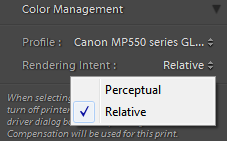
    Lightroom Render Intent - printing quality

    Lightroom Render Intent

    Perceptual:
    Is good to use if you have alot of bright saturated colours.

    Relative:
    If "Perceptual" is not the option to use, the "Relative" will produce more accurate prints.


    Below is an extract from the LR3.2 help library:

    Perceptual

    Perceptual rendering tries to preserve the visual relationship between colours.
    Colours that are in-gamut may change as out-of-gamut colors are shifted to reproducible colours.
    Perceptual rendering is a good choice when your image has many out-of gamut colors.
     

    Relative

    Relative rendering preserves all in-gamut colors and shifts out-of gamut colors to the closest reproducible color.
    The Relative option preserves more of the original color and is a good choice when you have few out-of-gamut colors.
     

    [Photography] Lightroom PresetsHeaven.com

    I'm a big fan of Adobe Lightroom, and how it makes the photography workflow soo much simpler, and intuitive.

    The presents that can be applied to give a shot a different feel is also a god-send.

    There's a whole raft of presents freely available on presetsheaven.com - Check the site out !

    I'm a big fan of Presets Heaven